How to Password-Protect a PDF and Choose a Strong Password
Step-by-step guide to password-protecting a PDF online, choosing a strong password or passphrase, avoiding common mistakes and sharing files safely.
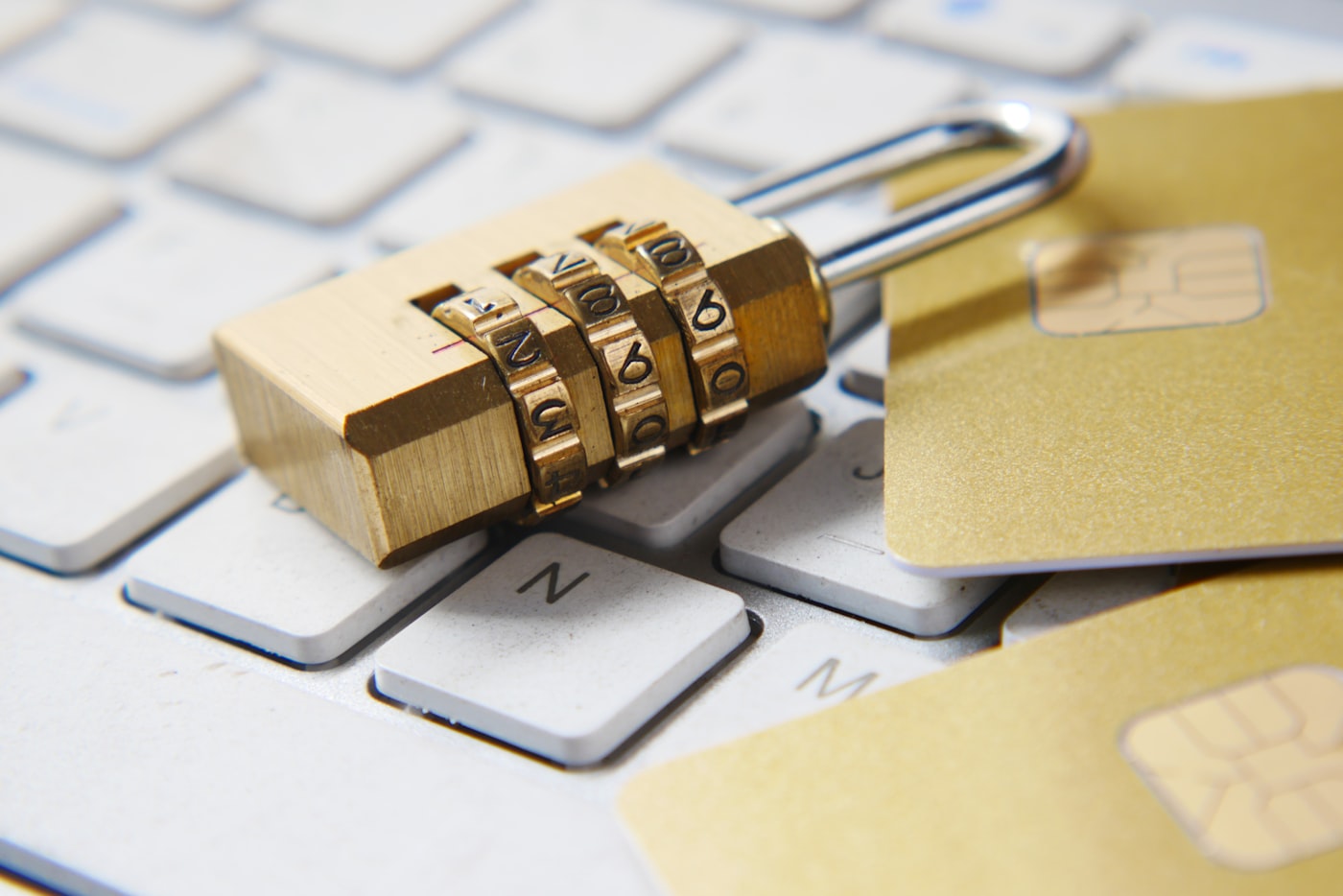
A PDF often holds exactly the kind of information you would not want a stranger to read: a contract, a tax return, a medical letter, a payslip or an internal report. Once the file is attached to an email or dropped into a shared folder, you lose control over where it ends up. A password is one of the simplest ways to make sure that only the people you intend can open it.
But a password only helps if it is applied properly and is hard to guess. This guide explains what PDF password protection does, how to add it in a few minutes, how to choose a password that holds up, and which mistakes to avoid.
What password protection does for a PDF
When you password-protect a PDF, the document is encrypted. Anyone who tries to open it is asked for the password first, and without it the contents cannot be read. This is different from simply hiding a file or renaming it, because the protection travels with the PDF wherever it goes: email, cloud storage, a USB stick or a messaging app.
PDF files can use two kinds of password, and it helps to know the difference:
- Open password (sometimes called a user password): required to open and view the document at all.
- Permissions password (sometimes called an owner password): controls actions such as printing, copying text or editing, while still letting people read the file.
For most everyday cases, such as sending a private document to one person, an open password is what you want. Permissions restrictions are useful as a deterrent, but they are generally weaker than requiring a password to open the file, so do not rely on them for anything truly confidential.
When password protection makes sense
Not every PDF needs a lock. It is worth adding one when:
- The document contains personal data such as ID numbers, addresses, bank details or health information.
- You are sending it by email, which can be forwarded, stored on several servers and read on shared devices.
- It is stored in a shared or synced folder where several people or devices have access.
- It is a draft, offer or financial document that should reach only a specific recipient.
- You are archiving sensitive records and want an extra layer in case a device is lost or stolen.
If a PDF is meant for the public, such as a brochure or a published report, a password only gets in the way.
How to password-protect a PDF with PDFPro
The Protect PDF tool on PDFPro adds a password to a document directly in your browser, with nothing to install. It works on Windows, macOS, Linux, iOS and Android in any modern browser. A free account is required to use the tools.
- Sign in or create a free account. PDFPro requires an account to use its tools, including the free ones.
- Open the Protect PDF page. This is the tool for adding a password to a document.
- Upload your PDF. On the free plan, files can be up to 25 MB per upload. If your file is larger, the $1 One-File Pass covers one operation on a file up to 100 MB, and the Pro plan supports files up to 500 MB.
- Enter the password you want to use. Choose it before you start (see the next section) rather than inventing something on the spot. Type it carefully, and check whether the page asks you to confirm it.
- Run the operation and download the protected file. Save it somewhere you will find it again.
- Test the result. Open the downloaded PDF in your usual viewer and confirm it asks for the password and accepts the one you chose. Do this before you send it to anyone.
About your file: it is processed on PDFPro servers over an encrypted HTTPS/TLS connection and is automatically and permanently deleted within 1 hour. Files are never shared, sold or used for training. Keep your original unprotected copy somewhere safe too, in case you ever need to make changes.
How to choose a strong password
The strength of the lock depends mostly on the password. A weak one can be guessed by software that tries millions of common combinations. Strong passwords share a few qualities.
Length matters most
Every extra character makes a password dramatically harder to guess. As a rule of thumb, aim for at least 14 to 16 characters for anything sensitive. A longer password made of ordinary words is usually both stronger and easier to remember than a short one full of symbols.
Use a passphrase
A passphrase is a string of several unrelated words, for example four or five words picked at random and separated by spaces or hyphens. Because it is long and not based on a single dictionary word, it resists guessing, yet you can still recall it. The key word is unrelated: a famous quote, song lyric or phrase that describes you is far easier to guess than random words.
Be unique
Do not reuse a password from your email, banking or social media accounts. If one of those is ever exposed in a data leak, anyone holding that password can try it on your PDF as well.
Avoid personal information
Birthdays, pet names, phone numbers, company names and the recipient's name are the first things someone would try. Skip them, even with a number added at the end.
Compare your options
| Approach | Example style | Strength | Easy to remember? | Notes |
|---|---|---|---|---|
| Short common word | A single dictionary word plus a number | Very weak | Yes | Easily guessed by software |
| Personal details | Name plus birth year | Weak | Yes | Often findable from social media |
| Short random characters | 8 mixed characters | Moderate | No | Better, but length is limited |
| Random passphrase | 4 to 5 unrelated words | Strong | Fairly | Good balance for most people |
| Long random string | 16 or more random characters from a password manager | Very strong | No (stored in a manager) | Best for highly sensitive files |
For most people, a random passphrase is the sweet spot. If you already use a password manager, letting it generate a long random string and storing it there is even better.
How to share the password safely
Protecting the file is only half the job. How you pass the password to the recipient matters just as much.
- Use a different channel. Send the PDF by email and the password by a text message, a phone call or a secure messaging app.
- Do not put the password in the same message or in the file name.
- Tell the recipient what to expect, so they know the call or message is genuine.
- Share only with those who need it, and consider using a new password for each recipient or project.
- Avoid leaving it in shared notes, tickets or chat threads that many people can read.
Common mistakes to avoid
- Forgetting the password. A properly encrypted PDF cannot be opened without it, and there is no back door you can count on. Store the password in a password manager or another safe place at the time you create it.
- Deleting the original. Keep an unprotected master copy in a secure location so you can edit, update or re-protect the file later.
- Using an obvious password. Words like password, 123456, the company name or the year are among the first guesses.
- Sending the password with the file. This defeats the purpose, because anyone who intercepts the email has both.
- Skipping the test. Always open the protected file yourself before sending it. A typo when setting the password is a common cause of locked-out recipients.
- Relying on permissions alone. Blocking printing or copying does not stop someone from reading a file they can open. Use an open password for confidential content.
- Protecting a file that still contains hidden data. A password does not remove metadata, comments or hidden layers. Review the document for anything you did not intend to share before you lock it.
Removing a password when you no longer need it
Sometimes a protected PDF becomes a nuisance. Perhaps a document you locked years ago is now routine, or you are tired of typing the password into every file you open from your own archive. In that case, the Unlock PDF tool can remove the password protection so the file opens normally.
Keep in mind how this works: you need to know the current password to remove it. Unlocking is meant for files you own or have permission to use, and it is not a way to break into someone else's document. If you have forgotten the password to a file that really is encrypted, you should not expect any online tool to recover it.
A practical workflow looks like this:
- Open the Unlock PDF page and upload the protected file (within your plan's size limit).
- Enter the existing password when asked.
- Download the unlocked copy.
- Store it securely, and re-apply protection with Protect PDF if you plan to share it again, perhaps with a fresh password.
A simple checklist before you send a protected PDF
- Review the document for content that should not be included.
- Choose a long, unique password or passphrase.
- Add the password with a tool such as Protect PDF.
- Open the result and test the password.
- Save the password in a password manager.
- Send the file and the password through separate channels.
- Keep a clean original copy in a safe place.
This takes only a few minutes and covers the most common ways a private PDF ends up in the wrong hands.
Frequently asked questions
Is a password-protected PDF really secure?
It is a solid layer of protection when you use a strong, unique password and require it to open the file. The weak point is usually the password itself or the way it is shared, not the idea of encryption. A short or predictable password can be guessed, and a password sent in the same email as the file offers little protection.
What is the best length for a PDF password?
For sensitive documents, aim for at least 14 to 16 characters. A passphrase of four or five random, unrelated words usually reaches that length and is still manageable to remember. For very sensitive material, use a long random string generated and stored by a password manager.
What happens to my file when I use PDFPro to protect it?
You need a free account to use the tool. Your file is uploaded over an encrypted HTTPS/TLS connection and processed on PDFPro servers, then automatically and permanently deleted within 1 hour. Files are never shared, sold or used for training. The free plan accepts files up to 25 MB per upload.
Can I remove a PDF password later?
Yes, if you know the current password. The Unlock PDF tool removes the protection from a file you are entitled to use, giving you a copy that opens without a prompt. It cannot recover a forgotten password, so keep the password stored safely from the beginning.
Keep reading

Are Online PDF Tools Safe? A Privacy and Security Checklist
Wondering if online PDF tools are safe? Use this practical privacy and security checklist to protect your sensitive documents before you upload.

How to Add a Watermark to a PDF to Protect and Brand It
Learn how to add text or logo watermarks to PDFs, choose the right placement and opacity, and combine watermarks with passwords to protect documents.

How to Turn JPG and PNG Photos or Scans into One PDF
Learn how to combine JPG and PNG photos or scans into a single PDF: prepare images, set the page order, avoid common mistakes, and keep file size manageable.